All templates

Deploy JupyterNotebook on your own server.

JupyterNotebook logo

Jupyter Notebook is a popular, free, and open-source web application that allows you to create and share documents containing live code, equations, visualizations, and narrative text. It supports numerous programming languages and is widely used for data cleaning and transformation, numerical simulation, statistical modeling, data…

Your infrastructureAutomatic HTTPSNo lock-in

Screenshots

A closer look at JupyterNotebook.
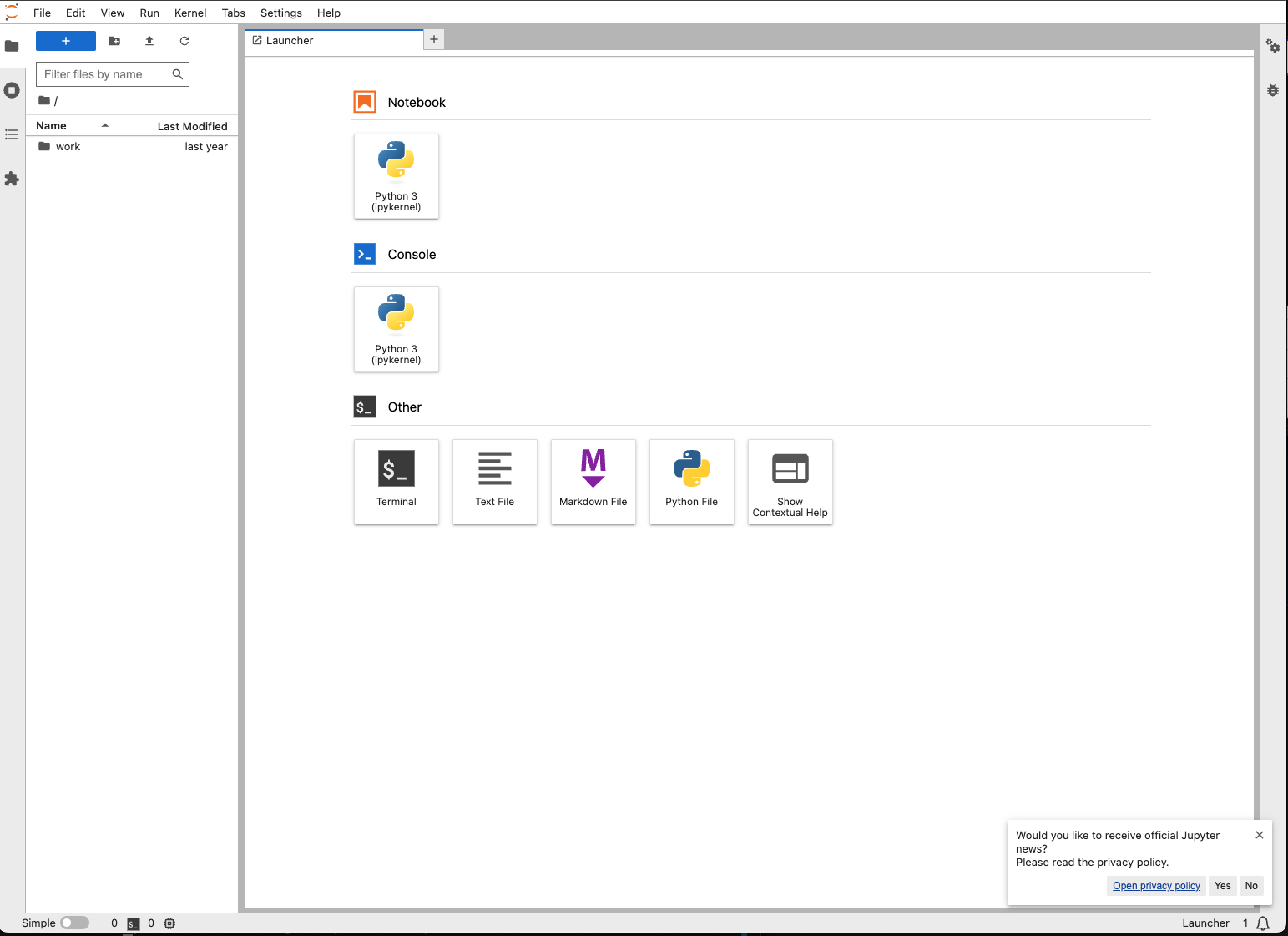
JupyterNotebook screenshot 1

Setup time

A few minutes

Deployment

Your own server

Services

1 connected service

Why JupyterNotebook

Everything you need, running where you choose.

Get the full JupyterNotebook experience with Easypanel handling the repetitive infrastructure work around it.

Open Source
Jupyter Notebook is free and open-source software. This allows users to freely use, modify, and distribute it.
Web-Based Access
Access the application via your web browser, making it easy to use on any device without additional installations.
Customizable Environment
Configure the environment to suit your workflow by using a range of optional environment variables and settings.
Docker Integration
Jupyter Notebook works seamlessly with Docker, enabling rapid deployment and ensuring a consistent development environment.
Interactive Computing
Jupyter Notebook provides an interactive environment where users can write and execute code in real time, view outputs immediately, and iterate quickly.
Multi-Language Support
Jupyter Notebook supports numerous programming languages through its extensible kernel architecture, including Python, R, Julia, and more.
How it works

From template to live app in three steps.

Easypanel turns the template into real services, storage, and domains on the server you already control.

Already have Easypanel? Open your dashboard at the URL or IP of your own installation.

Installation guide
1
Open your dashboard
Visit the URL or IP of your Easypanel installation and choose the target project.
2
Choose JupyterNotebook
Open Templates, select JupyterNotebook, then review its service names and configuration.
3
Deploy and open your app
Easypanel starts every service and provisions an HTTPS domain for you.
Installation options
The template asks for these values before creating your services.
OptionDefaultRequired

App Service Name

jupyternotebookRequired

App Service Image

Docker Stacks Foundation / Base Notebook / Minimal Notebook / R Notebook / Julia Notebook / SciPy Notebook / TensorFlow Notebook / PyTorch Notebook / Data Science Notebook / PySpark Notebook / All Spark NotebookRequired
Resources
Project documentation and source code.
Latest template update
Jan 6, 2024

First release

Questions

Deploy with confidence.

The template handles the application setup while Easypanel keeps the infrastructure understandable and under your control.

JupyterNotebook logo
Ready to deploy JupyterNotebook?
Open your own Easypanel dashboard, choose JupyterNotebook from Templates, and review the deployment options.