Deploy Jetlog on your own server.

Jetlog logo

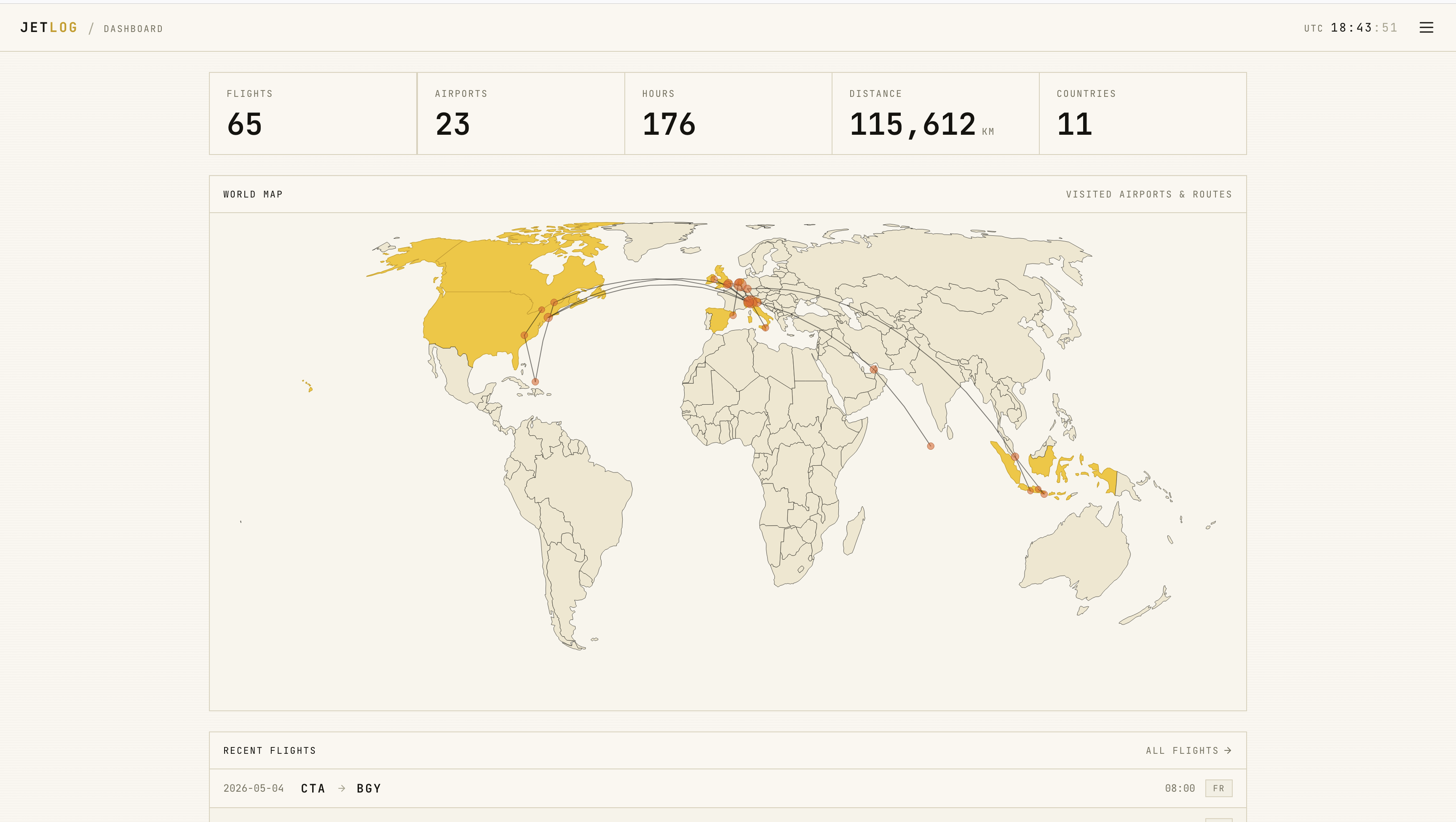
Jetlog is a self-hostable personal flight tracker and viewer. It provides a world map view of all your flights, detailed statistics, and a clean responsive interface for adding, editing, and deleting flight records. It supports secure authentication with multiple users, data import from MyFlightRadar24 and custom CSV files, and data…

Your infrastructureAutomatic HTTPSNo lock-in

Screenshots

A closer look at Jetlog.

Jetlog screenshot 1

Setup time

A few minutes

Deployment

Your own server

Services

1 connected service

Why Jetlog

Everything you need, running where you choose.

Get the full Jetlog experience with Easypanel handling the repetitive infrastructure work around it.

Secure Multi-User Authentication
Protect your data with built-in authentication. Jetlog supports multiple user accounts so everyone in your household can track their own flights.
Import and Export
Import flight history from MyFlightRadar24 or a custom CSV file. Export your data back to CSV or iCal format for use in other tools.
Responsive Design
The interface adapts to any screen size, making it easy to log flights from a desktop browser or a mobile device.
Optional External API Integration
Automatically fetch flight details from a flight number using the adsbdb API. Disable external calls at any time via an environment variable for maximum privacy.
Personal Flight Tracker
Keep a detailed log of every flight you have taken in one place. Add, edit, and delete records at any time with a simple, intuitive interface.
World Map Visualization
See all your flights plotted on an interactive world map, giving you a clear picture of your travel history at a glance.
How it works

From template to live app in three steps.

Easypanel turns the template into real services, storage, and domains on the server you already control.

Already have Easypanel? Open your dashboard at the URL or IP of your own installation.

Installation guide
1
Open your dashboard
Visit the URL or IP of your Easypanel installation and choose the target project.
2
Choose Jetlog
Open Templates, select Jetlog, then review its service names and configuration.
3
Deploy and open your app
Easypanel starts every service and provisions an HTTPS domain for you.
Installation options
The template asks for these values before creating your services.
OptionDefaultRequired

App Service Name

jetlogRequired

App Service Image

pbogre/jetlog:1.2Required
Resources
Project documentation and source code.
Latest template update
Jun 29, 2026

first release

Questions

Deploy with confidence.

The template handles the application setup while Easypanel keeps the infrastructure understandable and under your control.

Jetlog logo
Ready to deploy Jetlog?
Open your own Easypanel dashboard, choose Jetlog from Templates, and review the deployment options.