All templates

Deploy Portracker on your own server.

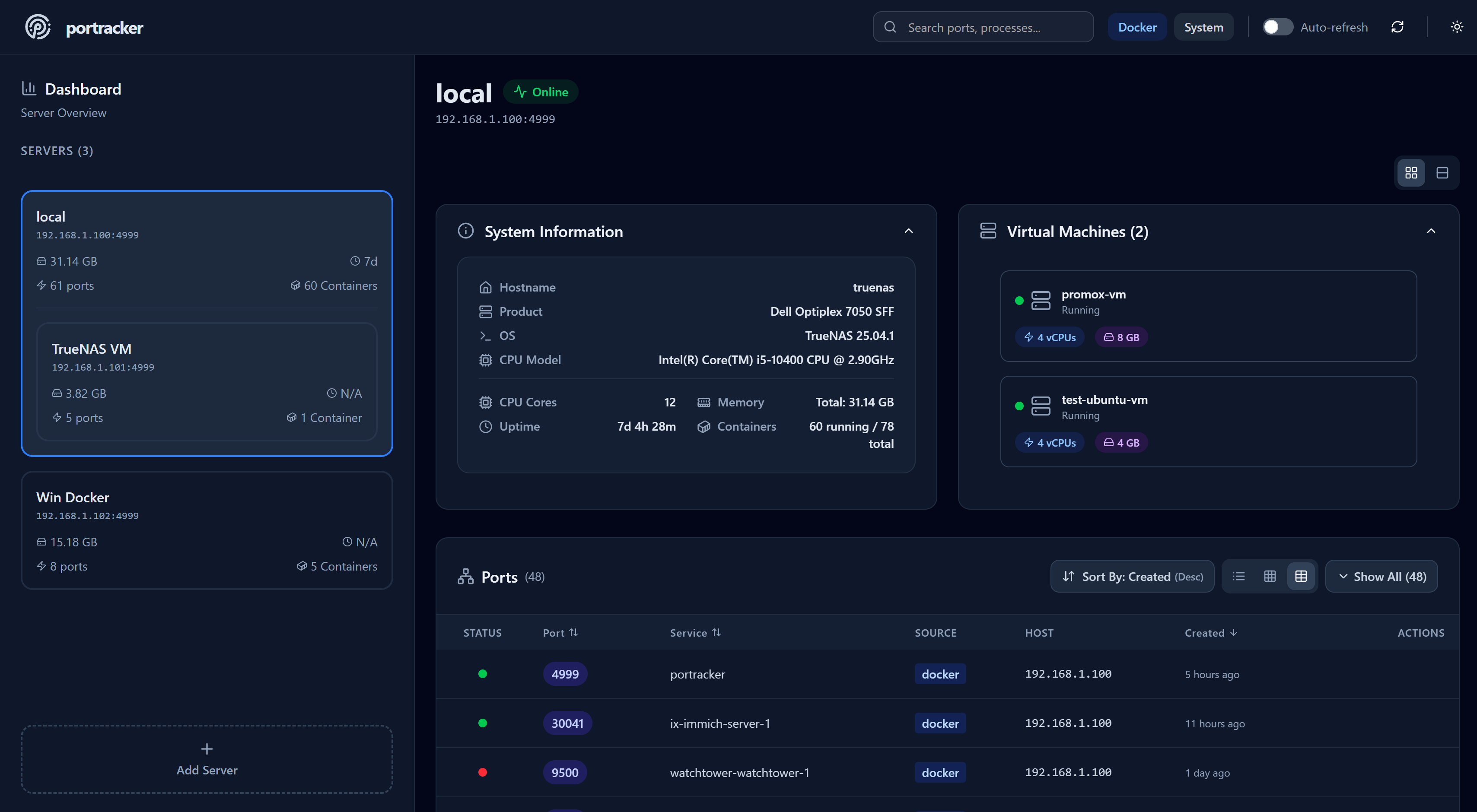
Portracker is a self-hosted port tracking and monitoring application that provides real-time visibility into port usage across your infrastructure. It automatically discovers and tracks ports used by services running on your system, including Docker containers, and provides a comprehensive dashboard for port management and conflict…

Your infrastructureAutomatic HTTPSNo lock-in

Screenshots

A closer look at Portracker.
Portracker screenshot 1

Setup time

A few minutes

Deployment

Your own server

Services

1 connected service

Why Portracker

Everything you need, running where you choose.

Get the full Portracker experience with Easypanel handling the repetitive infrastructure work around it.

Automatic Port Discovery
Automatically discover ports used by running services and containers without manual configuration or port scanning.
Docker Socket Integration
Read-only access to Docker socket for discovering services running in Docker containers and their port assignments.
System Port Detection
Advanced system-level port detection with required permissions for accessing host processes and port information.
TrueNAS Integration
Optional TrueNAS API integration for enhanced features and infrastructure management capabilities.
Data Persistence
Reliable data storage for port tracking information, service configurations, and historical port usage data.
Web Dashboard
Clean and intuitive web interface for viewing port assignments, managing services, and monitoring port usage across your infrastructure.
How it works

From template to live app in three steps.

Easypanel turns the template into real services, storage, and domains on the server you already control.

Already have Easypanel? Open your dashboard at the URL or IP of your own installation.

Installation guide
1
Open your dashboard
Visit the URL or IP of your Easypanel installation and choose the target project.
2
Choose Portracker
Open Templates, select Portracker, then review its service names and configuration.
3
Deploy and open your app
Easypanel starts every service and provisions an HTTPS domain for you.
Installation options
The template asks for these values before creating your services.
OptionDefaultRequired

App Service Name

portrackerRequired

App Service Image

mostafawahied/portracker:1.3.7Required

Enable TrueNAS Integration

Enable enhanced TrueNAS features and API integration

falseOptional

TrueNAS API Key

API key for TrueNAS integration (required if TrueNAS is enabled)

Set during installOptional
Resources
Project documentation and source code.
Latest template update
May 5, 2026

Version bumped to 1.3.7

Questions

Deploy with confidence.

The template handles the application setup while Easypanel keeps the infrastructure understandable and under your control.

Keep exploring

Related templates

Browse all
PruneMate logo
PruneMate
PruneMate is a self-hosted Docker cleanup and management tool that provides a web-based interface for pruning unused Docker resources from your system. It helps you reclaim disk space by identifying and removing unused containers, images, volumes, networks, and build cache. With its intuitive dashboard, you can easily monitor Docker resource usage, schedule automatic cleanup tasks, and manually trigger pruning operations without using command-line tools. PruneMate connects directly to your Docker daemon via the Docker socket, allowing it to safely analyze and clean up orphaned resources that accumulate over time. The application features configurable cleanup schedules, selective pruning options to choose which resource types to clean, detailed logging of all cleanup operations, and real-time statistics showing disk space recovered. With timezone support and customizable time format settings, you can schedule cleanup operations to run during off-peak hours. Perfect for developers and system administrators who manage Docker environments and want to automate the cleanup of unused resources, homelab enthusiasts running multiple containers who need to manage disk space efficiently, CI/CD environments where frequent image builds create significant cleanup overhead, or anyone looking for a simple web interface to manage Docker resource cleanup without remembering complex docker system prune commands.
View template
PortNote logo
PortNote
PortNote is a self-hosted port tracking application that helps you keep track of used ports across your servers and VMs. Stop juggling spreadsheets and guessing which service uses which port — PortNote gives you a clear, organized view of your entire port landscape. Add your servers via a sleek web interface, assign and document port usage across all systems, and avoid conflicts before they happen.
View template
Cupdate logo
Cupdate
Cupdate is a self-hosted web application for monitoring and managing Docker container updates. It provides a centralized dashboard to track available updates for your running containers, view container versions, and manage update notifications. By connecting to the Docker daemon via the Docker socket, Cupdate scans all running containers and checks for newer image versions available in container registries. The web interface displays an overview of your container infrastructure with update status, image tags, registry information, and visual indicators for outdated containers. Cupdate features automatic update checking on a configurable schedule, support for multiple container registries, detailed container information with links to documentation and registries, and the ability to manage container logos and metadata. With its lightweight architecture and persistent storage using BoltDB and SQLite, Cupdate offers an efficient solution for staying informed about container updates without requiring complex automation or CI/CD pipelines. Perfect for home lab administrators managing multiple Docker containers, DevOps teams maintaining staging environments, system administrators tracking container versions across servers, or anyone who wants visibility into their Docker infrastructure's update status without manually checking each container.
View template
Ready to deploy Portracker?
Open your own Easypanel dashboard, choose Portracker from Templates, and review the deployment options.