Deploy ClassicPress on your own server.

ClassicPress logo

ClassicPress is a community-led open source content management system for creators. It is a fork of WordPress 6.2 that preserves the TinyMCE classic editor as the default option. It is half the size of WordPress, contains less bloat improving performance, and has no block editor (Gutenberg/Full Site Editing).

Your infrastructureAutomatic HTTPSNo lock-in

Screenshots

A closer look at ClassicPress.
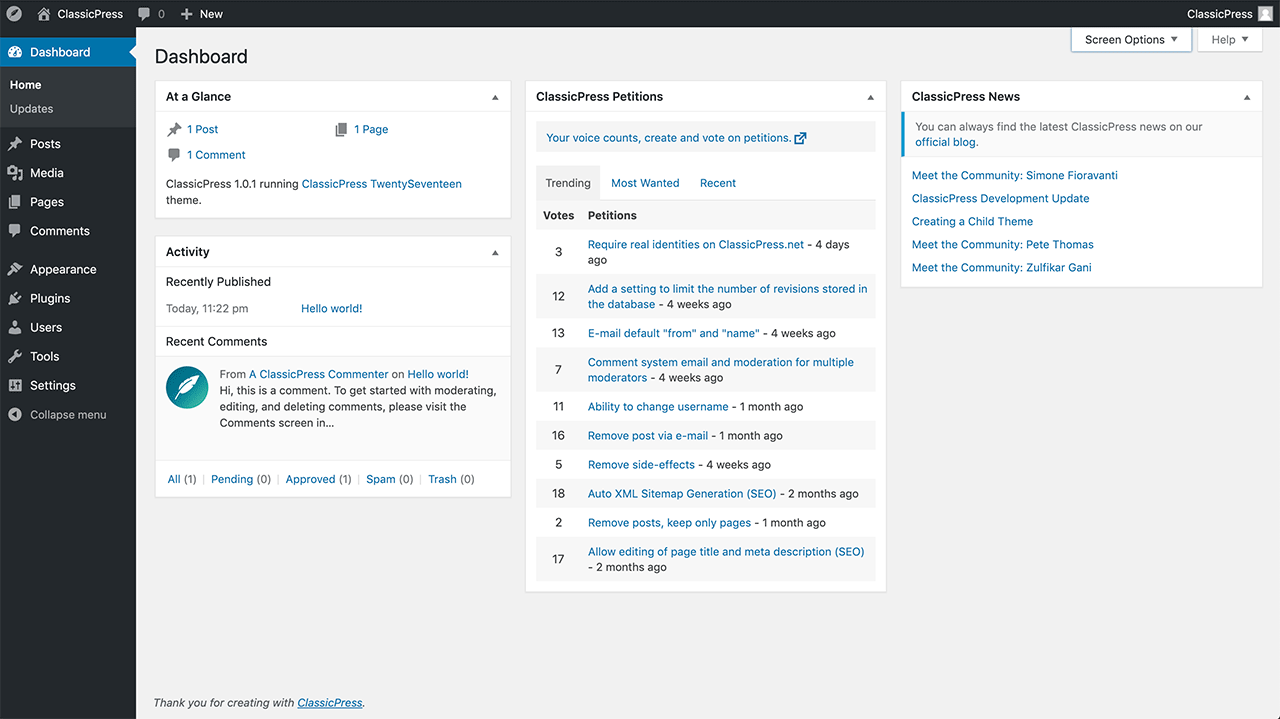
ClassicPress screenshot 1

Setup time

A few minutes

Deployment

Your own server

Services

2 connected services

Why ClassicPress

Everything you need, running where you choose.

Get the full ClassicPress experience with Easypanel handling the repetitive infrastructure work around it.

User-Friendly Interface
ClassicPress provides a familiar and easy-to-navigate interface for content management. Its dashboard is intuitive, making it accessible for both beginners and advanced users.
Enhanced Security
ClassicPress places a strong emphasis on security, with a focus on minimizing vulnerabilities. Regular updates and a security-first approach help keep your site safe.
Custom Post Types
The CMS supports custom post types, giving users the flexibility to create different content types beyond posts and pages. This feature is essential for building complex websites with varied content structures.
Plugin and Theme Compatibility
ClassicPress is compatible with a wide range of plugins and themes, making it easy to extend functionality and customize the appearance of your site.
Open-Source CMS
ClassicPress is an open-source content management system (CMS) that focuses on security, stability, and simplicity. It is a community-driven alternative to WordPress, designed for users who want more control and fewer unnecessary updates.
Multi-Site Capability
ClassicPress supports multi-site setups, allowing users to manage multiple websites from a single installation. This makes it an ideal solution for agencies and businesses managing multiple sites.
How it works

From template to live app in three steps.

Easypanel turns the template into real services, storage, and domains on the server you already control.

Already have Easypanel? Open your dashboard at the URL or IP of your own installation.

Installation guide
1
Open your dashboard
Visit the URL or IP of your Easypanel installation and choose the target project.
2
Choose ClassicPress
Open Templates, select ClassicPress, then review its service names and configuration.
3
Deploy and open your app
Easypanel starts every service and provisions an HTTPS domain for you.
Installation options
The template asks for these values before creating your services.
OptionDefaultRequired

App Service Name

classicpressRequired

App Service Image

classicpress/classicpress:php8.5-apacheRequired
Resources
Project documentation and source code.
Latest template update
Dec 25, 2025

Version bumped to php8.5-apache

Questions

Deploy with confidence.

The template handles the application setup while Easypanel keeps the infrastructure understandable and under your control.

ClassicPress logo
Ready to deploy ClassicPress?
Open your own Easypanel dashboard, choose ClassicPress from Templates, and review the deployment options.