Deploy Calibre Web Automated on your own server.

Calibre Web Automated (CWA) is an enhanced version of Calibre Web with automated book processing capabilities. It automatically adds books to your library from an ingest directory, supports Hardcover API integration for enhanced metadata, and provides network share compatibility. CWA processes books according to your configured settings…
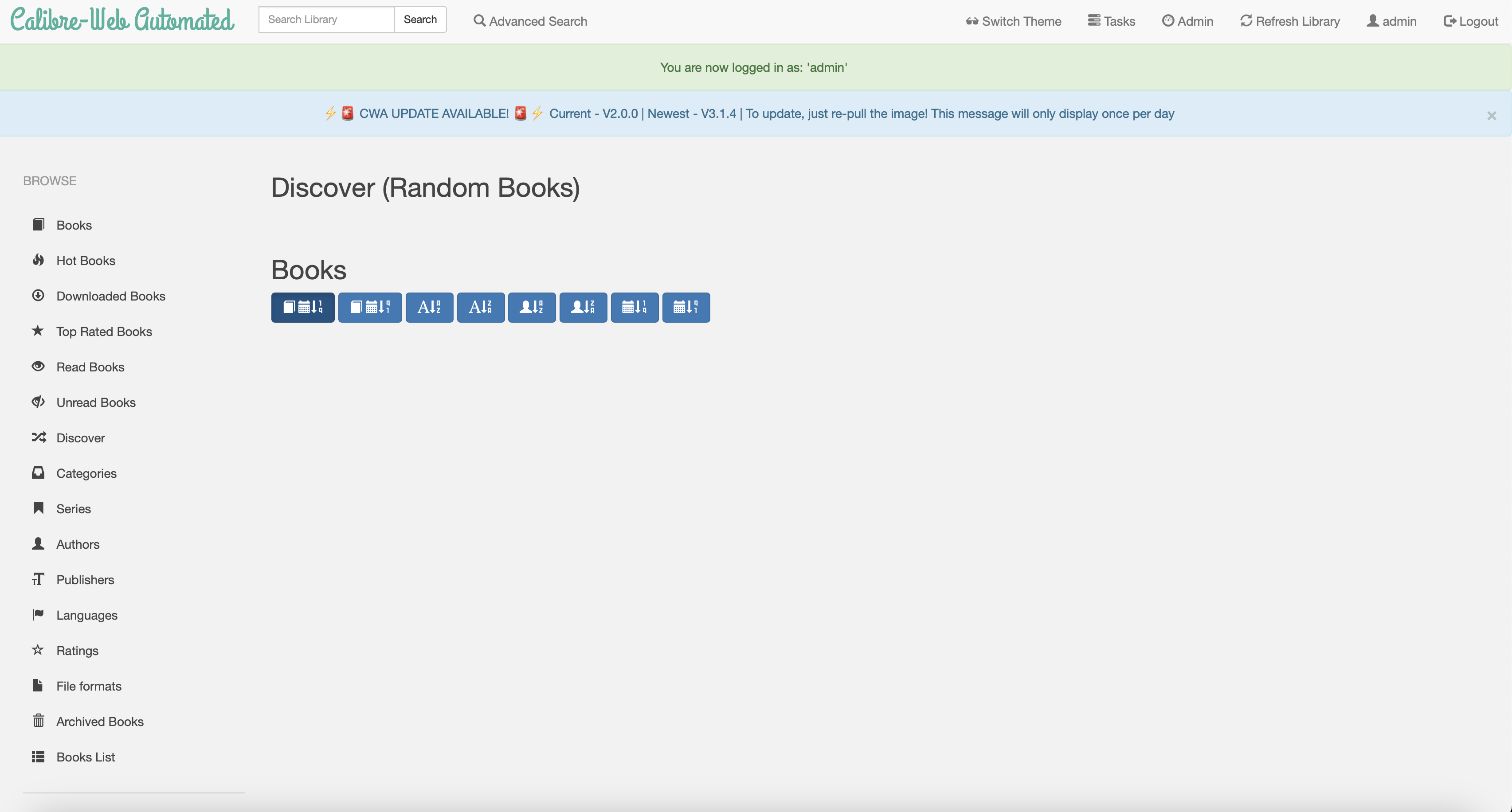
Screenshots
A closer look at Calibre Web Automated.
Setup time
A few minutes
Deployment
Your own server
Services
1 connected service
Everything you need, running where you choose.
Get the full Calibre Web Automated experience with Easypanel handling the repetitive infrastructure work around it.
From template to live app in three steps.
Easypanel turns the template into real services, storage, and domains on the server you already control.
Already have Easypanel? Open your dashboard at the URL or IP of your own installation.
Installation guide| Option | Default | Required |
|---|---|---|
App Service Name | calibre-web-automated | Required |
App Service Image | crocodilestick/calibre-web-automated:V3.1.4 | Required |
Timezone Timezone for the application | UTC | Optional |
Hardcover API Token Hardcover API key for enhanced metadata (get one at https://docs.hardcover.app/api/getting-started/) | Set during install | Optional |
Network Share Mode Enable if your library is on a network share (NFS/SMB) to reduce locking issues | false | Optional |
Enable Calibre Plugins Enable support for Calibre plugins (experimental) | false | Optional |
Updated to V3.1.4
Deploy with confidence.
The template handles the application setup while Easypanel keeps the infrastructure understandable and under your control.
Related templates